Can your PC run Windows 11? How to check TPM 2.0, Secure Boot and CPU support
By the TrustiKeys support team. Updated , 3 min read
Run Microsoft's free PC Health Check app first. If it reports a problem, it's almost always one of three things: TPM 2.0 is switched off, Secure Boot is off (or Windows is installed in legacy BIOS mode), or the processor is too old. The first two can usually be fixed in a few minutes in your PC's firmware settings.
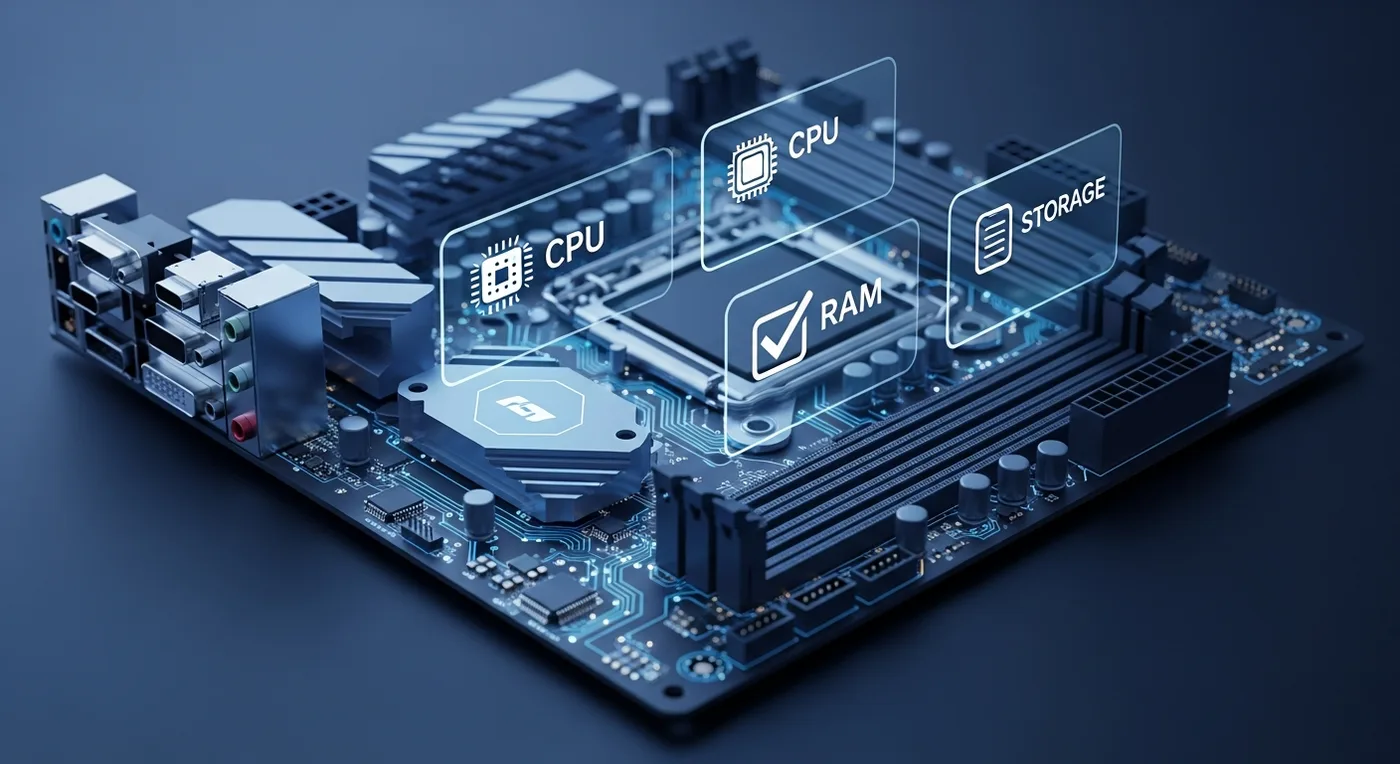
Windows 11 minimum requirements
| Component | Requirement |
|---|---|
| Processor | 1 GHz+, 2 or more cores, on Microsoft's supported CPU list (roughly Intel 8th gen / AMD Ryzen 2000 and newer) |
| Memory | 4 GB RAM |
| Storage | 64 GB |
| Firmware | UEFI with Secure Boot capability |
| Security chip | TPM version 2.0 |
| Graphics | DirectX 12 compatible, WDDM 2.0 driver |
| Display | 720p, larger than 9 inches |
In practice, 8 GB of RAM and an SSD make a big difference to everyday speed, even though they aren't required.
Step 1: Run PC Health Check
- Download the PC Health Check app from Microsoft's Windows 11 page.
- Open it and select Check now under Introducing Windows 11.
- If it fails, select See all results to see exactly which requirement isn't met.
Step 2: Check and turn on TPM 2.0
Press Windows + R, type tpm.msc and press Enter. If you see "Specification Version: 2.0," you're set. If it says "Compatible TPM cannot be found," the chip may just be disabled.
- Restart and enter your UEFI/BIOS setup (usually Del, F2 or F10 at startup; check your PC maker's support page).
- Look in the Security or Advanced section for Intel PTT (Platform Trust Technology) or AMD fTPM.
- Enable it, save and exit. Then run tpm.msc again.
Step 3: Check Secure Boot and UEFI mode
Press Windows + R, type msinfo32 and look at two lines: BIOS Mode should say UEFI, and Secure Boot State should say On (or Off, if it's merely disabled).
- BIOS Mode: UEFI, Secure Boot: Off. Enable Secure Boot in the firmware's Boot or Security menu.
- BIOS Mode: Legacy. Windows is installed on an MBR disk. Convert it to GPT with Microsoft's built-in tool, then switch the firmware to UEFI and enable Secure Boot.
mbr2gpt /validate /allowFullOS
mbr2gpt /convert /allowFullOSIf your processor isn't supported
There's no setting to fix an unsupported CPU. Workarounds exist to install Windows 11 anyway, but Microsoft doesn't guarantee updates on unsupported hardware. Windows 10 is no longer supported either (see Windows 10 end of support), so for an older PC the realistic options are new hardware or a limited, offline role.
Once your PC passes
Upgrade from Windows 10 through Windows Update or Microsoft's Installation Assistant. If you need a license, choose Windows 11 Home or Windows 11 Pro; not sure which? Read Home vs. Pro.
 How to upgrade Windows 11 Home to Pro without reinstalling
 How to find your Windows 11 or Windows 10 product key
 Windows 11 activation errors: what each code means and how to fix it